
Delta adds one menu to wp-admin. The agent handles most day-to-day work, but it is useful to know what each screen does.
The dashboard comes in dark and light modes (the toggle sits top-right) and is deliberately minimal. It is a control panel for oversight: connections, toggles, restore points. It is not a building tool, and there is no page builder. We kept it small on purpose: the agent does the building, and these screens exist so a person can see what it did and undo it.
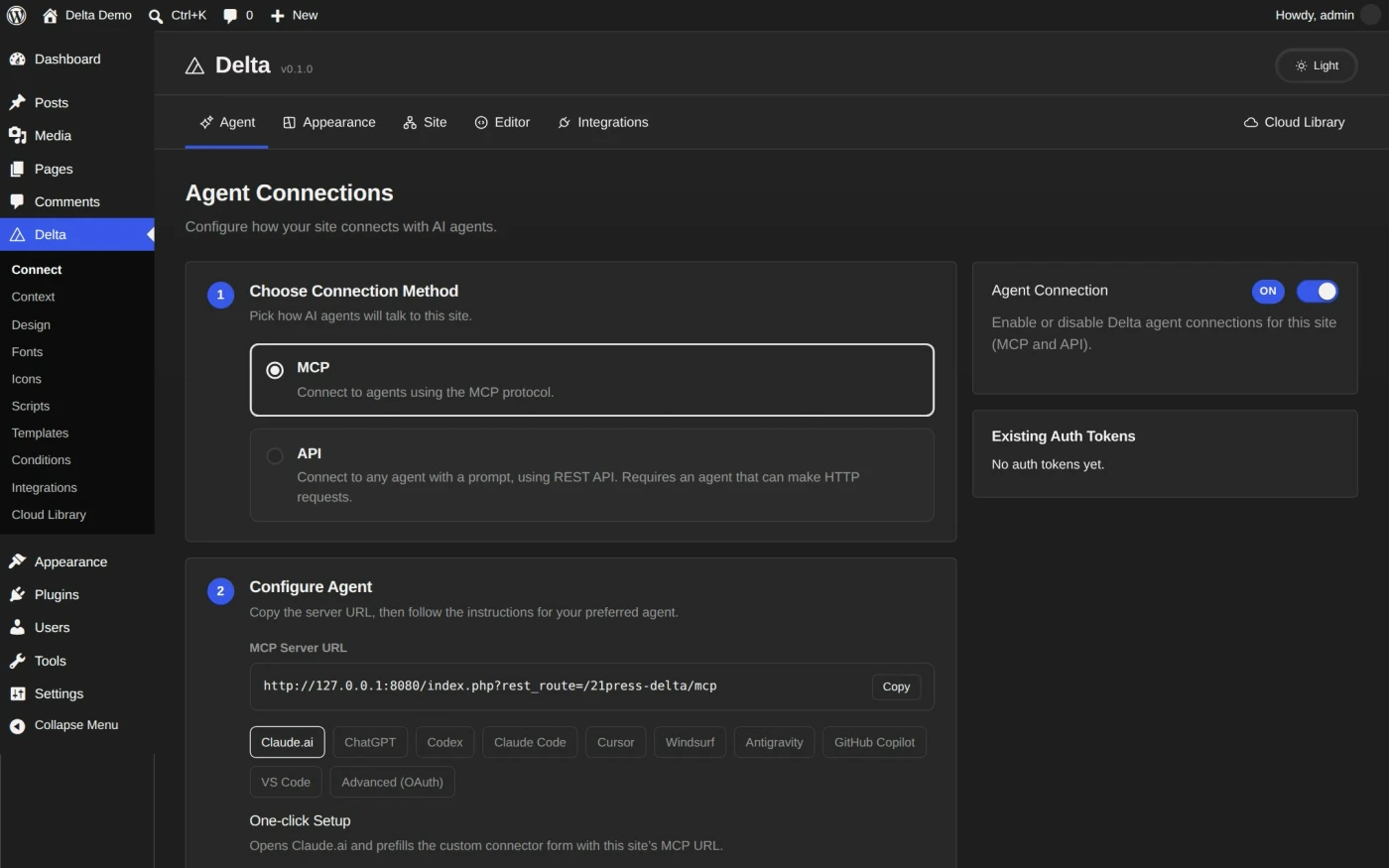
The Delta menu has five items, and a sixth, Approvals, that shows only while an agent’s request waits for your decision. Each item opens a group of screens, and the tabs at the top of the dashboard move between the screens in that group.
| Menu item | Screens |
|---|---|
| Agent | Connect, Abilities, Context |
| Appearance | Design, Icons, Fonts |
| Site | Templates, Conditions, Field Maps, Features, Scripts, Snapshots, Map |
| Editor | Delta Editor |
| Integrations | Integrations |
| Approvals | Approvals (only while a request waits) |
Agent
- Connect: agent connections, tokens, and revocation.
- Abilities: switch single agent abilities on or off. All on turns every one back on.
- Context: the agent’s working knowledge: skills (playbooks), rules (constraints you add), and guardrails (Delta’s built-in confirmations, which you can toggle but not edit). When an agent has changed a rule or a skill, a Changed by an agent card at the top of this screen lets you keep or undo it. See Changed by an agent panel.
- Approvals: an agent’s request to install a plugin or change an account that runs the site, written out in full for you to approve or deny. See Approvals.
Appearance
- Design: the design system at a glance, in three tabs: Design System (the style guide), Components, and Notes. On Delta’s seed design system, Restore Default resets the design pack to the theme default when it has changed.
- Icons: icon packs and single icons, usable anywhere via
{{icon:pack/icon}}. - Fonts: install fonts from the Google catalog or upload your own; fonts are self-hosted on your server.
Site
- Templates: every layout the agent has built: headers, footers, archives, singles.
- Conditions: which template shows where; the assignment rules behind the templates.
- Field Maps: the custom fields Delta knows about, each as a placeholder the design can use.
- Features: switches for the optional parts of Delta: Soft Navigation, Coming Soon and Memory. When a feature is on, the button on its card opens its screen. Memory, the agent’s work log, opens from its card here.
- Scripts: site-wide header and footer snippets (analytics, tracking).
- Snapshots: saved copies of the site’s Delta design and content. Save a snapshot, restore one, or pin it so it is kept. Media, users, and plugins are not included.
- Map: your content as a graph, the site map, and the agent’s skills, rules and abilities in one picture.
Editor and Integrations
- Editor: Delta Editor, to inspect and change a managed page’s HTML, CSS, and JS directly.
- Integrations: supported plugins (forms, content types, WooCommerce, design systems) and their status.
These screens are human-only by design. Agents cannot create tokens, enable abilities, change guardrails, or approve their own requests.
On the live site
Two more tools open on the site itself, from Delta in the admin bar: the Front panel and the Sketchbook. In the posts list, Open in Delta Front Panel opens a page with the panel.
Language
Delta ships in English, Spanish, Japanese, German, French, Brazilian Portuguese, Italian, Dutch, Russian, Polish, Turkish and Simplified Chinese. wp-admin and the Front panel follow the language in your user profile; the public site follows the site language. The translations are machine-made and not yet checked by native speakers, and some screen text and all ability names are still in English. If you find a wrong translation, tell us.