When you edit WordPress with AI, explaining what you want can take longer than making the change. You can see the heading that feels too large or the button that sits awkwardly beside a paragraph. The agent, however, may only have your message: “Can you fix that section?”
The agent needs to know which element you mean and whether you want to change its wording, spacing or layout.
For me, this is a question of workflow ergonomics: how comfortably I can move between discussing a change, pointing to it and checking the result. An integrated browser keeps the live website inside the agent’s workspace, alongside the conversation. MCP or another authorized site connection lets the agent use the website’s tools; an element annotation identifies where I want the change.
Open the live site inside the agent’s workspace
In a client with an integrated browser, open your live WordPress site within the same session. The conversation can sit on the left and the browser on the right, so you discuss the page, select an element and inspect the result in one workspace. The benefit comes from bringing the page reference into the conversation, beyond simply placing two separate windows beside each other.
A heading can look right on its own and feel too large above a particular image. A button might need clearer wording because of the paragraph before it. Keeping the page visible lets you judge the change in context.
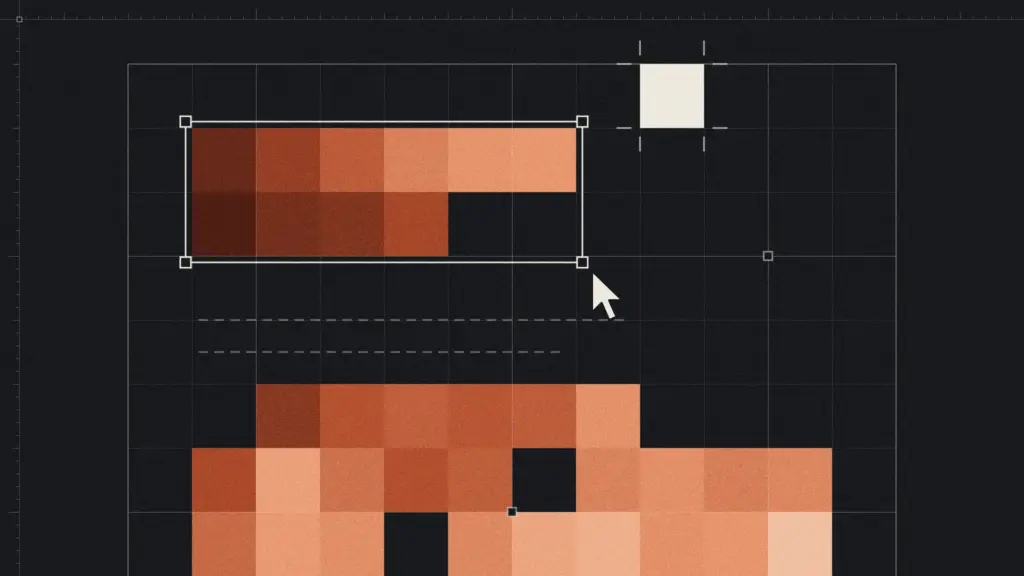
Where your client supports element annotations, you can select the relevant part of the page and leave a comment. Instead of repeatedly explaining where something lives, you give the agent a reference to work from.
The browser also gives you a place to inspect the result. You can look at the changed page, follow its links and decide whether the change answers your request.
Point to the element, then describe the change
Consider a services page with several sections. You want the heading above the contact form to feel less prominent.
A message such as “Make the heading smaller” could refer to several elements. Selecting the heading and writing “Reduce this heading slightly so the form feels like the main focus” supplies both the target and the intention.
You do not need to know the CSS selector or explain the page structure. Depending on the integration, the selection can carry information about the element alongside your comment.
Precision still matters. “Make this better” tells the agent very little about your preference. “Keep this wording, reduce the heading size and leave the spacing as it is” gives it a clearer decision to make.
In my own workflow, I often combine voice with element annotations: I point to what I mean and talk through the change while looking at the page. With a clear page structure, I can also identify the target aloud: “In the pricing section, third table, change the fifth list item to…”
Familiar examples across clients
ChatGPT and Codex’s built-in browser supports page annotations: select an element or area, leave a comment and send the feedback in the conversation.
Cursor’s Design Mode combines its browser with element selection, drawing and voice instructions. Claude Code on desktop also provides a Browser pane with element selection and external-site browsing.
Claude Cowork offers a built-in browser. Claude Design provides element comments in its design canvas, a separate setting from the live website.
Client annotations give the agent a visual reference and your instructions. The agent then needs access to the website or its code to apply the change. For quick text changes directly on a Delta page, I use the theme’s front panel.
Delta’s front panel: edit and discuss on the page
Delta’s front panel, added in Delta 0.3.0, brings selection and quick text editing to the theme’s own interface. Logged-in users with the required access can select an element and edit supported text directly on the page.
Often, the thing I want to tweak is simply the wording. I might ask the agent to handle the layout, then change a headline or a few words myself. Direct text editing works independently of the agent: it does not require sending element context or asking the agent to make the change.
With selection sharing active, the panel saves the selected element’s page, relevant HTML and CSS, and where it is stored. The connected agent retrieves that context when I refer to “this” or “the selected element”, helping it distinguish page content from a shared template.
Inside the client’s integrated browser, I can also use its native selection or annotation tool, where available. That attaches a reference to my feedback; Delta’s selector makes the site’s element context available through the connection. I can use whichever fits the change, then inspect the result in the same workspace.
Reviewing the change
After the agent adjusts the heading, look at it beside the form again. Does the form now feel like the main focus? If the heading still draws too much attention, select it and explain what remains wrong. You can discuss the result in terms of what you see, while the agent handles the relevant code.
This is the workflow ergonomics I care about: I can point and talk through a layout change, edit a few words directly in Delta, then inspect the result inside the same workspace.